

04/06/2026
RevenueSA is strengthening RevenueSA Online data security

RevenueSA is strengthening data security by implementing multi-factor authentication (MFA) for RevenueSA Online users.
MFA is one of the most effective ways to protect your account against unauthorised access, as it requires a user to provide two or more forms of verification to access the account. For RevenueSA Online, this will involve a combination of your password and an authentication code sent to your registered email.
Commencing 18 June 2026, RevenueSA Online users will be progressively migrated to MFA.
What you need to do first
Access RevenueSA Online as you usually would. That is, open RevenueSA Online, add your username and password.
This will result in four possible scenarios:
- Multi-factor authentication has been enabled for your account.
- Multi-factor authentication has been enabled for your account BUT your details require updatin g. This will need to be amended before you can continue into RevenueSA Online.
- Multi-factor authentication has not yet been enabled for your account.
- Multi-factor authentication has not yet been enabled for your account because your username does not match the registered email address.
What you need to do next
Scenario 1: Multi-factor authentication has been enabled for your account.
- Once you have entered your username and password you will be advised on the screen that an authentication code has been sent to your registered email address. A verification screen will be provided for you to finalise your login to RevenueSA Online using the authentication code from the email.
- If you do not receive the authentication code because you no longer have access to the registered email address, you will need to contact RevenueSA for assistance (08) 8372 7534.
Scenario 2: Multi-factor authentication has been enabled for your account BUT your details require updating. This will need to be amended before you can continue into RevenueSA Online.
- Once you have entered your username and password you will be re-directed to the Personal Details screen. You must complete this screen to be able to continue into RevenueSA Online.
- Complete the field for New Email Address.
- Select Validate.
- An email will be sent to your new email address containing an Authentication Code.
- Enter the Authentication Code from the email into the Email Authentication field in the RevenueSA Online screen – then select Update.
- Providing the validation is successful, your username and registered email will be updated.
- Your password will remain unchanged.
- You will be redirected to the usual landing page for RevenueSA Online.
- Next time you log into RevenueSA Online, your user experience will be as outlined under scenario 1.
Scenario 3: Multi-factor authentication has not yet been enabled for your account.
- You may continue in RevenueSA Online as you usually would – multi-factor authentication will be applied to your account in the future – or you can choose to be an early adopter of MFA.
- If you would like to switch to MFA straight away (on or after 18 June), select the settings cog at the top right screen, followed by Personal Details.
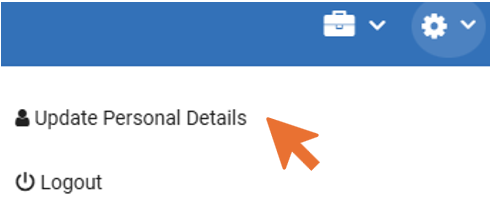
- In the Personal Details screen you can enable MFA, update your email address, or both. If required, you must update your email address prior to enabling MFA.
Scenario 4: Multi-factor authentication has not yet been enabled for your account because your username does not match the registered email address.
- Once you have entered your username and password you will be re-directed to the Personal Details screen. You must complete this screen to be able to continue into RevenueSA Online.
- You will not be able to navigate elsewhere until your details have been updated.
- Update the field for New Email Address.
- Select Validate.
- An email will be sent to your new email address containing an Authentication Code.
- Enter the Authentication Code from the email into the Email Authentication field in the RevenueSA Online screen – then select Update.
- Providing the validation is successful, your username and registered email will be updated.
- Your password will remain unchanged.
- You will be redirected to the usual landing page for RevenueSA Online.
- This action has not activated MFA. You may continue in RevenueSA Online as you usually would – multi-factor authentication will be applied to your account in the future – or you can chooses to be an early adopter of MFA.
- If you would like to switch to MFA straight away (on or after 18 June), select the settings cog at the top right screen, followed by Personal Details.
- Enable MFA.